- A+
Introduction
The Epson 1400 printer is widely used for printing high-quality images, graphics, and documents. Like any other electronic device, it may experience issues that require troubleshooting. One of the commonly encountered problems is the need to reset the printer to factory settings. This article will guide you on how to reset the Epson 1400 printer.
Why Reset Epson 1400 printer?
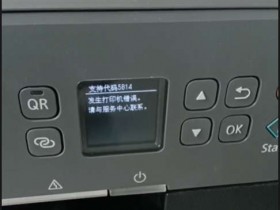
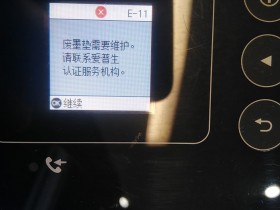
The need to reset Epson 1400 printer often arises when the printer encounters errors, or when changing the ink cartridge. In some cases, you may experience problems with the printer recognizing the ink cartridges, or the printer may not print after replacing the cartridges. Resetting the printer to factory settings solves most of these problems.
Methods of resetting Epson 1400 printer
There are two methods of resetting the Epson 1400 printer.
Method 1: Using the printer buttons
The first method involves using the printer buttons to reset the printer. Follow the steps below:
Ensure that the printer is turned off and disconnected from the power source.
Press and hold down the "Resume" and "Power" buttons simultaneously.
While holding down the two buttons, connect the printer to the power source.
Release the "Resume" button when the printer turns on, but continue holding the "Power" button.
After a few seconds, release the "Power" button and then press it again within two seconds.
Release the "Power" button to reset the printer.
Your Epson 1400 printer should now be reset to factory settings. Test the printer to ensure that it is working correctly.
Method 2: Using the Epson Adjustment Program
The second method involves using the Epson Adjustment Program. You can download the software from the Epson website or other reliable sources. Here are the steps to follow:
Download and install the Epson Adjustment Program on your computer.
Connect your Epson 1400 printer to the computer using a USB cable.
Run the Adjustment Program and select the "Model Name" of your printer.
Click on the "Particular Adjustment Mode" and select "Waste Ink Pad Counter" from the list.
Click on the "Initialization" button to reset the printer.
Once the process is complete, turn off the printer and disconnect it from the computer.
Turn on the printer and test it to ensure that it is working correctly.
Conclusion
Resetting the Epson 1400 printer to factory settings can solve various problems, including ink recognition issues, paper feed errors, and much more. The above methods will help you reset your printer to its original state. Remember to test the printer after resetting to ensure that it's working correctly.