- A+
Introduction
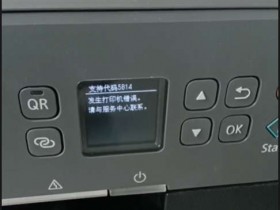
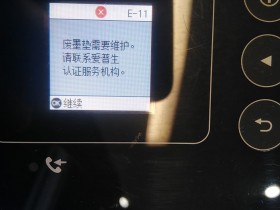
Printers rely on ink to produce high-quality prints, but this also means that they generate a lot of waste ink that needs to be collected somewhere. Most printers have waste ink pads that store all the used ink. When these ink pads are full, the printer displays an error message saying that the waste ink is full, and the user has to take the necessary steps to empty it. The same happens with the L455 printer, but in this article, we will show you how to prevent the waste ink error message from appearing so that you can keep using your printer without any interruptions.
The problem with waste ink
As mentioned earlier, the L455 printer generates a lot of waste ink that needs to be collected. The printer has waste ink pads that are designed to collect this ink. When the pads are full, the printer will stop working, and an error message will appear on the printer's display panel. This error message indicates that the waste ink is full and needs to be emptied. If you continue to print when the waste ink pad is full, the ink will overflow, and it will start to leak out of the printer, making a mess.
How to prevent the waste ink error message
To prevent the waste ink error message from appearing on your printer, you need to reset the waste ink counter. Here's how you can do it:
Turn off the printer and unplug it from the power source.
Press and hold the power button and the Wi-Fi button simultaneously, then press the power button again to turn on the printer. Continue to hold the buttons until the printer's power light begins to flash.
Release the buttons and wait for the printer to start up.
Run the reset utility software on your computer, then select the L455 printer from the list of printers and click on the reset button. The waste ink counter will now be reset.
What to do when the waste ink pad is full
If you've ignored the waste ink error message for too long and the waste ink pad is full, you'll have to do the following:
Take the printer apart and locate the waste ink pads. They're usually located at the bottom of the printer.
Remove the waste ink pads carefully and dispose of them properly. Don't throw them in the trash.
Clean the area where the waste ink pads were located with a clean, damp cloth.
Replace the waste ink pads with new ones and reassemble the printer.
Reset the waste ink counter using the method described earlier.
Conclusion
The waste ink problem is a common issue faced by most printer users, but it's an issue that can be easily resolved. By following the steps outlined in this article, you can prevent the waste ink error message from appearing on your L455 printer, allowing you to continue printing without interruptions. However, it's important to remember that resetting the waste ink counter is only a temporary solution. Eventually, you'll have to replace the waste ink pads to prevent ink from overflowing.